Introduction
Pixel Buds are celebrated for their top-notch sound quality and user-friendly design, making them a great choice for tech lovers. iPhone users can also enjoy these benefits by learning how to connect Pixel Buds efficiently. This comprehensive guide covers every aspect, from connecting your Pixel Buds to solving common problems and making the most out of advanced features available on iOS.
Understanding Pixel Buds and iPhone Compatibility
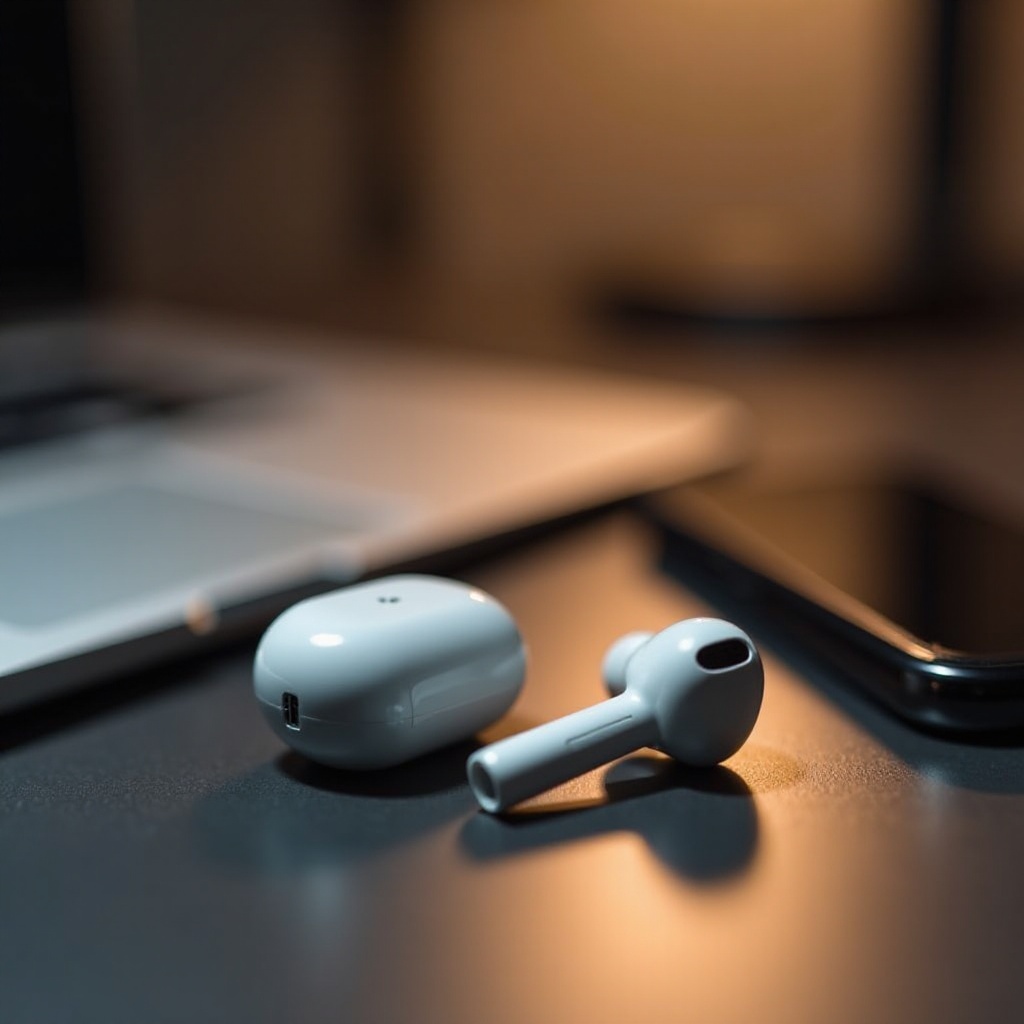
When using Pixel Buds with an iPhone, it’s essential to comprehend their compatibility. Even though Pixel Buds are Google products, they connect easily with Apple devices. Thanks to Bluetooth technology, these earbuds can pair with any Bluetooth-enabled device, including iPhones. Understanding the compatibility helps iPhone users tap into Pixel Buds’ full potential, including exceptional sound, noise cancellation, and extended battery life. With these fundamentals in mind, we can proceed to the connection process.
Step-by-Step Guide to Connect Pixel Buds to iPhone
Connecting your Pixel Buds with an iPhone is simple if you follow these steps:
- Preparing Your Devices:
- Make sure that both your Pixel Buds and iPhone are fully charged.
-
Turn on the Pixel Buds by opening the lid of the case while the earbuds are inside.
-
Activating Bluetooth on iPhone:
- Navigate to ‘Settings’ on your iPhone.
-
Tap on ‘Bluetooth’ and ensure it is turned on.
-
Pairing Pixel Buds with iPhone:
- Press and hold the pairing button on the Pixel Buds case until the light flashes.
- Your iPhone’s Bluetooth menu should display ‘Pixel Buds’ under ‘Other Devices’. Tap to connect them.
- Once the pairing is complete, ‘Pixel Buds’ will appear under ‘My Devices’, indicating a successful connection.
After achieving connection, exploring advanced features available for iOS users is advisable.
Advanced Connectivity Features
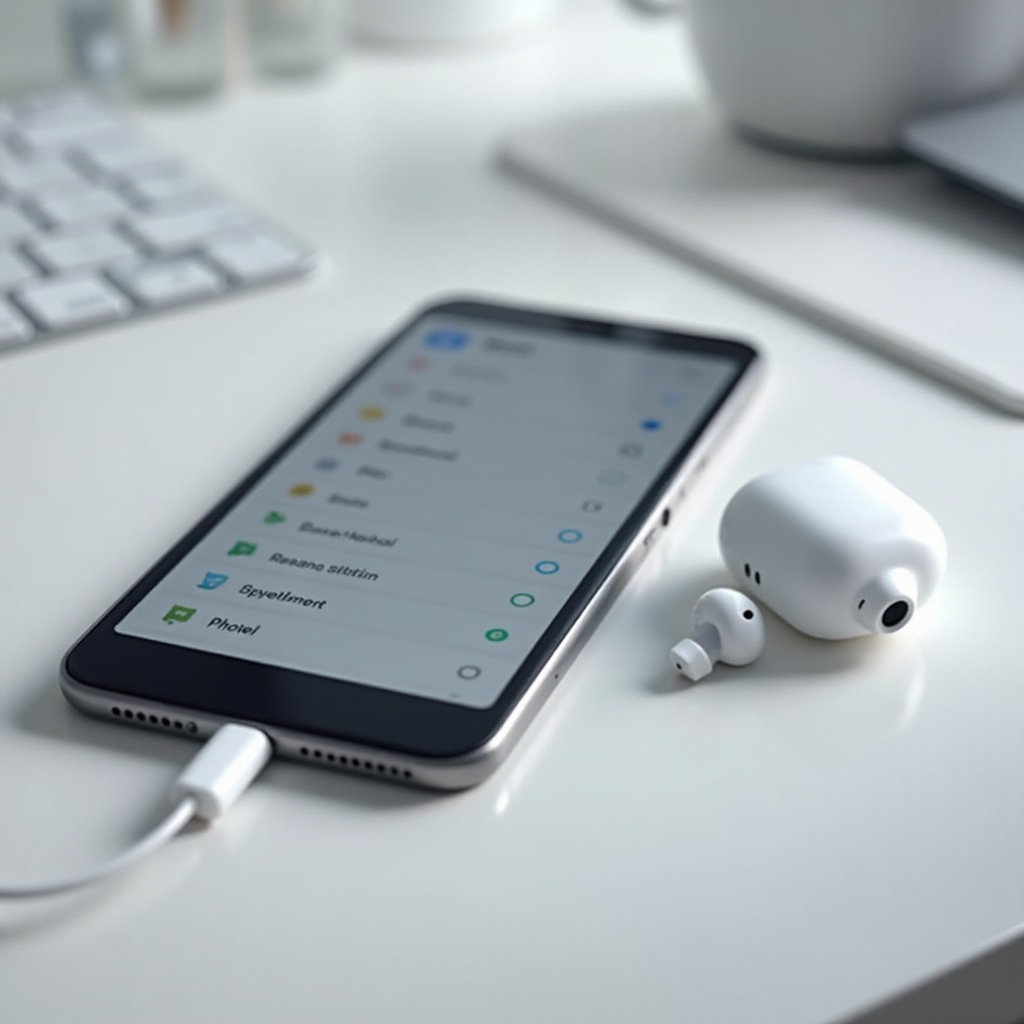
Pixel Buds come equipped with several advanced features to elevate your listening on an iPhone. A standout feature is Google Assistant, which you can access on an iPhone through the Google Assistant app. This integration allows for hands-free use, enabling you to manage music, set reminders, and receive notifications seamlessly. Moreover, the Pixel Buds app offers audio customization options, such as equalizer settings, to personalize your auditory experience, providing convenience unmatched in similar devices. These advanced features, when correctly utilized, contribute to a refined and efficient user interface with your iPhone, optimizing the functionality of Pixel Buds.
Troubleshooting Common Issues
Even though the connection process is fairly straightforward, issues might arise. Here are ways to tackle them:
- Fixing Pairing Failures:
- Confirm that Bluetooth is active and the devices are within range.
-
Restart both your Pixel Buds and iPhone, then retry the pairing process.
-
Addressing Intermittent Connection Drops:
- Minimize obstructions or nearby devices causing interference.
-
Keep your iPhone’s software updated to improve Bluetooth capabilities.
-
Solving Poor Audio Quality:
- Regularly clean the microphones and ear tips of your Pixel Buds.
- Ensure there is no object blocking the signal between the iPhone and earbuds.
With these solutions under your belt, utilizing Pixel Buds on your iPhone becomes a more satisfying experience.
Maximizing the Use of Pixel Buds on iPhone
To optimize the use of Pixel Buds, focus on battery longevity and maintaining connection fidelity. Ensure that you store your Pixel Buds in their case whenever they’re not in use and keep their firmware updated through the dedicated app. Consistent connection quality is maintained by staying within a realistic proximity to your iPhone and using them in varied environments. By following these practices, you ensure an uninterrupted auditory journey and will fully enjoy the comprehensive features Pixel Buds offer on your iPhone.
Conclusion
Connecting Pixel Buds to an iPhone paves the way for a dynamic range of sound quality and features that enhance daily routines. This guide helps you understand connection techniques, problem-solving strategies, and the advanced functionalities these earbuds offer, helping you maximize their potential. Dive into a new realm of auditory pleasure and harness the full capabilities of Pixel Buds with your iPhone.
Frequently Asked Questions
How do I update my Pixel Buds firmware on iPhone?
To update your Pixel Buds firmware, download the Pixel Buds app from the App Store. Open the app with your Pixel Buds connected and follow the prompts for updates.
Are Pixel Buds compatible with all iPhone models?
Pixel Buds work with most iPhone models supporting Bluetooth. Devices running iOS 11 or later provide the best compatibility.
What to do if Pixel Buds won’t connect to my iPhone?
If Pixel Buds don’t connect, restart both devices, ensure they’re charged, and check for iPhone software updates. Reset the Pixel Buds to factory settings if needed.