Introduction
Laptops are essential tools for both work and leisure, yet they often face limitations regarding connectivity and power management. Docking stations with power delivery provide solutions to these issues, offering enhanced productivity and seamless transitions between different environments. In this comprehensive guide, we delve into the benefits of these docking stations, tips for choosing the right one, setup procedures, and maintenance practices to ensure longevity and optimal performance.

Understanding Docking Stations with Power Delivery
What is Power Delivery?
Power delivery (PD) is a feature that allows a device to supply power to another device using a USB connection. This technology supports fast charging and efficient energy use, making docking stations with PD a valuable addition for those relying on high-performance laptops.
Benefits of Using a Docking Station
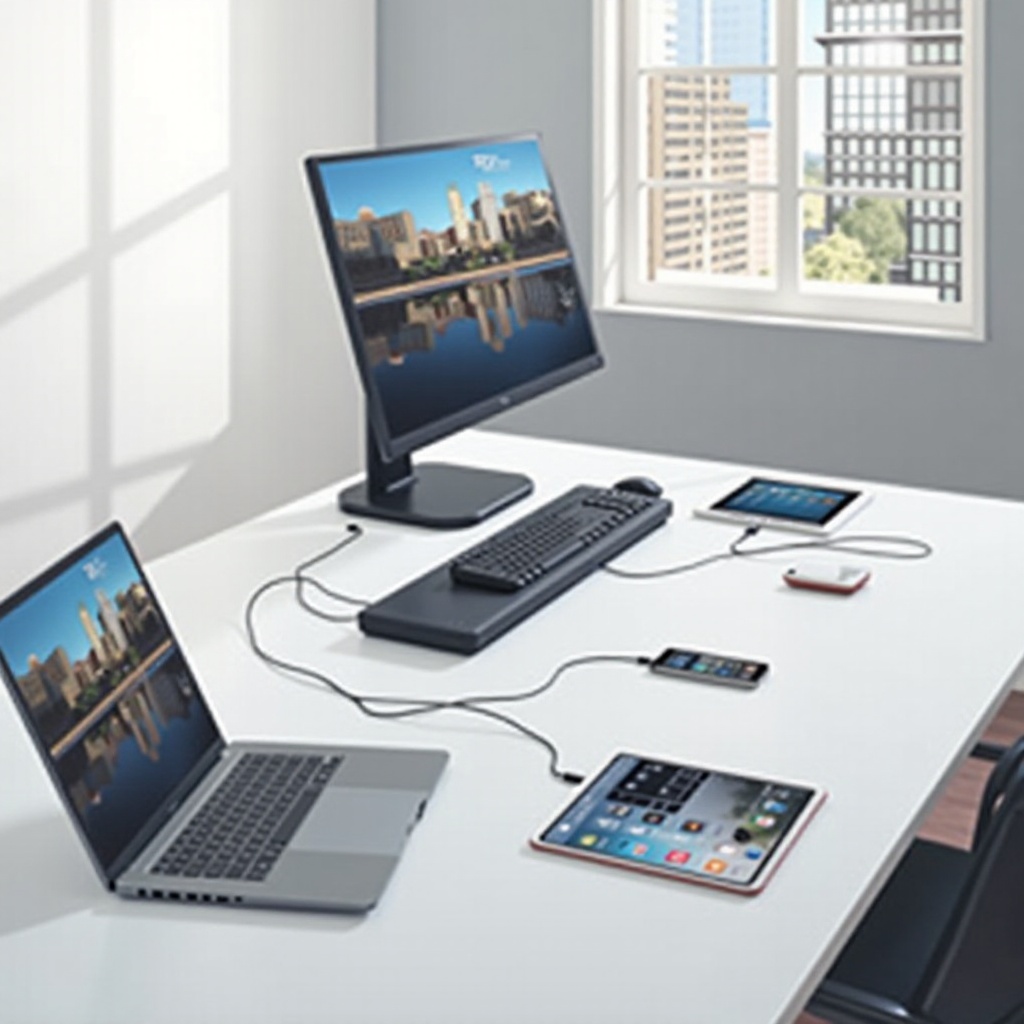
- Enhanced Connectivity: With numerous ports, users can connect monitors, keyboards, external drives, and other peripherals easily.
- Power Management: Docking stations provide consistent power to your laptop, helping you avoid the clutter of multiple chargers and adapters.
- Desk Organization: By consolidating cables and devices into one hub, they help maintain a tidy and professional workspace.
The seamless integration of docking stations with power delivery not only promotes productivity but also ensures that all connected devices operate efficiently. This leads us to the crucial aspect of choosing the right docking station that aligns with individual needs.
Choosing the Right Docking Station for Your Laptop
Selecting the ideal docking station involves several considerations to ensure compatibility and maximum utility.
Compatibility with Laptop Models
It is essential to verify the compatibility of the docking station with your laptop model. Many manufacturers list supported devices, but universal docking stations compatible with multiple devices are also available.
Essential Features to Look For
- Port Variety: The docking station should offer diverse connections like USB-C, HDMI, and Ethernet.
- Build Quality: Durable materials contribute to the longevity of the docking station.
- Design: A compact and sleek design enhances portability without sacrificing functionality.
Evaluating Power Output and Charging Speed
Consider the docking station’s power delivery capacity, particularly the wattage. For powerful laptops, opt for a station with at least 60W. This choice ensures efficient laptop performance and quick charging, keeping your workflow uninterrupted.
Once you have selected the appropriate docking station, the next step is setting it up for optimal efficiency. A well-organized setup process is vital to fully leverage the docking station’s benefits.
How to Set Up Your Docking Station for Maximum Efficiency
Step-by-Step Setup Guide
- Unbox and Position: Unpack the docking station and position it conveniently on your desk.
- Connect Peripherals: Attach monitors, keyboards, mice, and any other peripherals to the station’s respective ports.
- Link Your Laptop: Connect your laptop to the docking station using the provided cable, ensuring all connections are secure.
- Power On: Plug the docking station into a power outlet to enable power delivery features.
Common Troubleshooting Tips
- Ensure all cables and connections are secure.
- Download any required drivers or software updates for full functionality.
- Adjust laptop settings to recognize external displays and peripherals where necessary.
Proper setup maximizes the docking station’s capabilities, but ongoing maintenance is critical to sustaining peak performance.
Maintaining and Optimizing Your Docking Station Setup
Regular Maintenance Tips
- Routine Cleaning: Use a soft cloth or compressed air to keep the docking station free from dust and debris.
- Cable Inspection: Regularly check cables for wear or damage and replace them as needed.
Best Practices for Longevity
- Avoid Overloading: Connect only necessary devices to prevent overloading the station’s power and data capabilities.
- Firmware Updates: Regularly check and install firmware updates provided by the manufacturer for improvements in performance and security.
Maintaining your docking station ensures prolonged efficiency and prevents potential issues, thereby supporting your laptop’s performance. With these practices, your docking station remains a reliable companion for various computing tasks.
Conclusion
Docking stations with power delivery are transformative tools in enhancing laptop functionality. Selecting the right station, setting it up efficiently, and maintaining it ensures you harness its full potential. By investing in a quality docking station, you optimize your workspace and elevate your productivity to new heights.
Frequently Asked Questions
What laptops are compatible with docking stations with power delivery?
Most docking stations support a wide range of laptops, especially those with USB-C ports. Always check the compatibility with your specific laptop model before purchase.
How do I know if my docking station is supplying enough power?
Check your laptop’s charging indicator or system settings. If it is not charging efficiently, verify the docking station’s wattage against your laptop’s power requirements.
Can I use a docking station with multiple laptops?
Yes, you can use most docking stations with different laptops as long as they have compatible ports and power delivery specifications.