Introduction
Calibrating your Samsung TV significantly enhances your viewing experience by optimizing picture quality. Most TVs are set to attract buyers under showroom conditions and might not suit home environments. This guide helps adjust your Samsung TV settings using insights from Rtings, known for its expert advice on TV settings and reviews.
Why Calibrate Your Samsung TV?
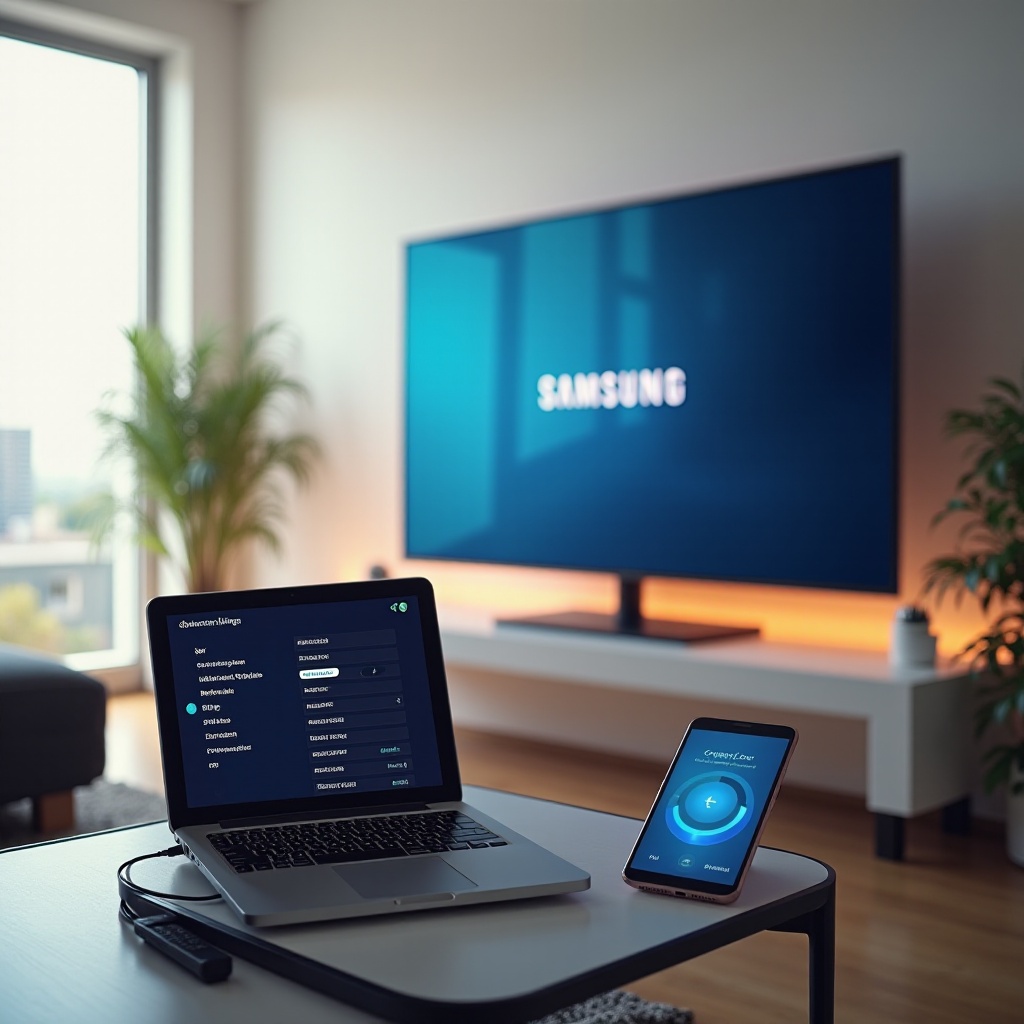
Calibration ensures that you enjoy accurate colors and fine details, elevating movie nights and gaming sessions. Understanding calibration’s benefits and common misconceptions ensures you maximize your TV’s potential.
The Benefits of Calibration
- Improved Picture Quality – Achieve lifelike images with exact colors, precise brightness, and perfect contrast.
- Customized Viewing Experience – Tailor settings for personal preferences and room lighting conditions.
Common Misconceptions
- Factory Settings Are Not Ideal – Default configurations are meant for bright stores, not living rooms.
- Calibration Requires Professional Help – With the right guidance, you can achieve professional-level results.
By understanding calibration benefits and misconceptions, you’re prepared to enhance your TV’s performance.
Preparing for Calibration
To ensure a seamless calibration experience, gather necessary tools and understand your Samsung TV model. This preparation prevents unnecessary interruptions or setbacks.
Gathering Necessary Tools and Equipment
- Calibration Disc or Patterns – Vital for setting accurate levels of color, brightness, and contrast, available online.
- Remote Control – Required to access and modify TV menu settings.
- Notebook – Note down current settings to easily reverse adjustments if needed.
Understanding Your Samsung TV Model
- Model Specifications – Check your TV’s manual or back for the model number.
- Firmware Status – Ensure your TV runs on the latest firmware for optimal performance.
Proper preparation ensures your calibration process is smooth and without unforeseen challenges.
Step-by-Step Calibration Process
Armed with preparation, you’re ready to adjust key settings in a detailed calibration process to enhance your viewing.
Navigating to Picture Settings
- Access the Menu – Use the remote to open the menu.
- Select Picture Settings – Use arrow keys to reach picture settings.
- Explore Picture Modes – Familiarize with modes like ‘Standard’, ‘Cinema’, or ‘Dynamic’.
Adjusting Brightness and Contrast
- Brightness – Adjust for deep blacks without crushing details in dark scenes.
- Contrast – Ensure clear differences between light and dark without losing detail.
Calibrating Color and Tint
- Color Temperature – Opt for settings that feel most natural, typically ‘Warm’ or ‘Neutral’.
- Tint/Hue – Adjust to avoid overly red or green tones.
Enhancing Sharpness and Motion Settings
- Sharpness – Lower from default to avoid artificial edges.
- Motion Settings – Adjust to eliminate the soap opera effect that makes motion appear unnaturally smooth.
These steps will guide you in optimizing your TV’s picture settings, improving your overall viewing experience.
Implementing Rtings Recommendations
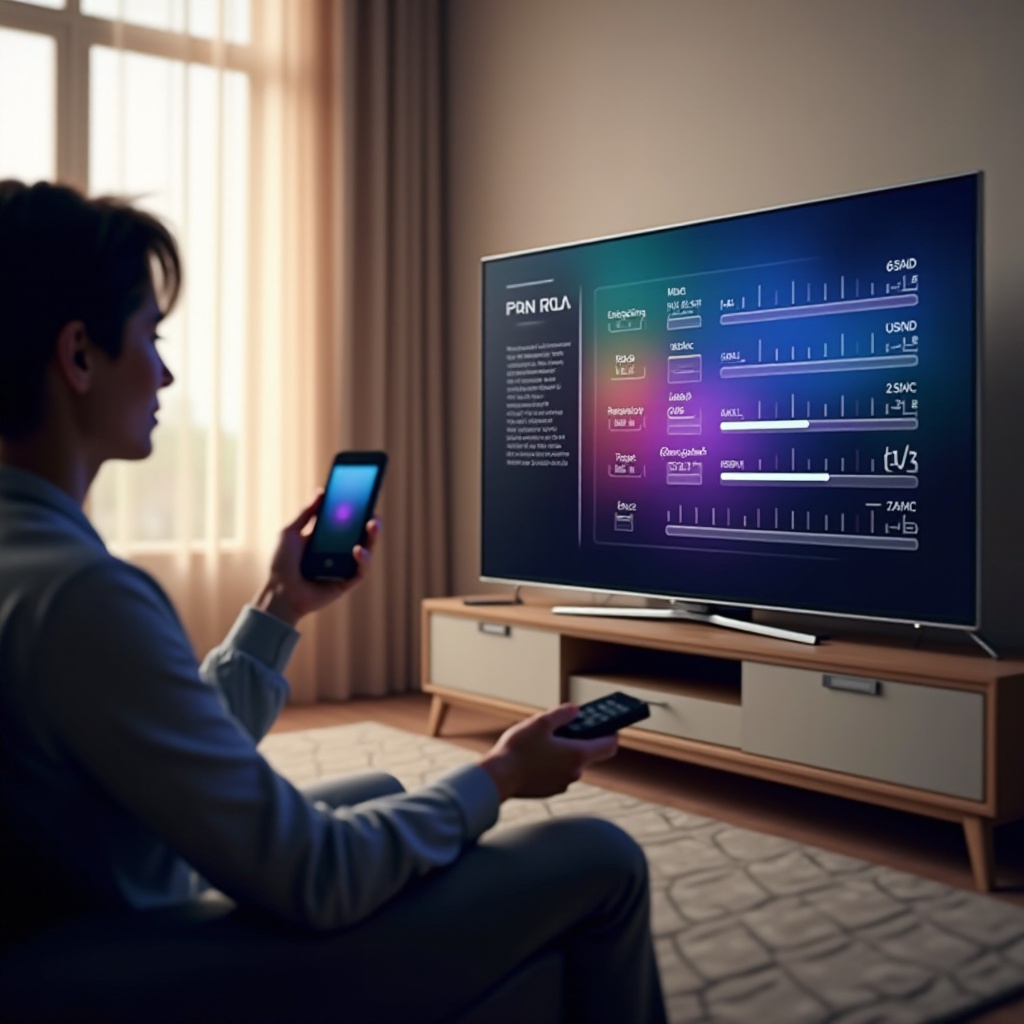
Rtings provides detailed settings to enhance your Samsung TV’s picture quality. Here’s how to integrate their advice.
Extracting Key Insights from Rtings
- Model-Specific Advice – Find tailored calibration settings for your model on Rtings.com.
- General Recommendations – Include adjustments to backlight, gamma, and more across Samsung models.
Applying Rtings’ Settings to Different Samsung Models
- Input the Recommendations – Carefully apply settings suggested by Rtings.
- Fine-Tune to Your Liking – Use them as a starting point and adjust according to your preference.
Rtings’ recommendations give a reliable foundation for calibration, ensuring optimal picture quality.
Troubleshooting Common Calibration Issues
Despite careful calibration, you might face challenges. Here’s how to troubleshoot them.
Correcting Color Imbalances
- Revisit Color Settings – If colors appear off, adjust hue and saturation.
- Adjust White Balance – Use patterns to ensure whites are true without hues.
Dealing with Over or Under-Saturation
- Lower Saturation – If colors are too vivid, reduce the saturation.
- Increase Saturation – If the picture seems washed out, raise saturation incrementally.
Addressing these issues ensures your viewing remains interference-free, maintaining ideal picture quality.
Conclusion
Calibrating your Samsung TV using Rtings guidance enhances your viewing experience with rich color, sharp contrast, and perfect brightness. This guide empowers you to maximize your TV’s capabilities, ensuring you enjoy every entertainment moment to its fullest.
Frequently Asked Questions
How often should I calibrate my Samsung TV?
It’s recommended to calibrate your Samsung TV annually or after significant firmware updates to maintain optimal settings.
Can I use Rtings settings for any model of Samsung TV?
Rtings provides model-specific settings, use these as a guide and adjust for personal and environmental preferences.
What should I do if my picture quality worsens after calibration?
If quality deteriorates post-calibration, revert to initial settings or consult the manual or support for assistance.