Introduction
Experiencing an HDMI ‘No Signal’ issue can disrupt your viewing experience. You’re eager to dive into your favorite series, but instead, you’re met with a blank screen. This common problem usually arises from connectivity hiccups or setup missteps, marking a breakdown in communication between your TV and external devices. The good news is you can often resolve these problems yourself with a few simple steps. We’ll walk you through the troubleshooting process, helping you not only restore your TV’s functionality but also prevent future issues.
Understanding HDMI and ‘No Signal’ Problems
Before tackling the troubleshooting steps, it’s beneficial to understand the core of HDMI ‘No Signal’ issues. HDMI, or High-Definition Multimedia Interface, is crucial for transmitting audio and video from devices like gaming consoles, Blu-ray players, or cable boxes to your TV. When your TV displays a ‘No Signal’ message, it indicates a disruption in this transfer. Common culprits include defective cables, wrong TV settings, or outdated firmware. Grasping these underlying causes sets the foundation for effective troubleshooting.
Initial Troubleshooting Steps
Once you understand the basics of HDMI issues, it’s time to dive into preliminary troubleshooting. These simple tweaks often resolve the most frequent connectivity problems.
Checking Cable Connections
- Verify the HDMI cable is securely connected at both ends.
- Ensure solid links between the cable and both your TV and external device.
- Inspect the cable for visible damage, such as twists or frayed areas.
Verifying the Correct Input Source
- Use your TV remote to access the input/source menu.
- Confirm that the corresponding HDMI input is selected for your device.
- Occasionally, toggling through input options can reset a faulty connection.
Power Cycling Devices
- Power down the TV and the connected device.
- Disconnect them from the power source for about 30 seconds.
- Reconnect and turn them back on, ensuring proper sync between devices.
Addressing these areas can often align your devices and clear minor glitches. If problems persist, more in-depth solutions may be necessary.
Advanced Troubleshooting and Solutions
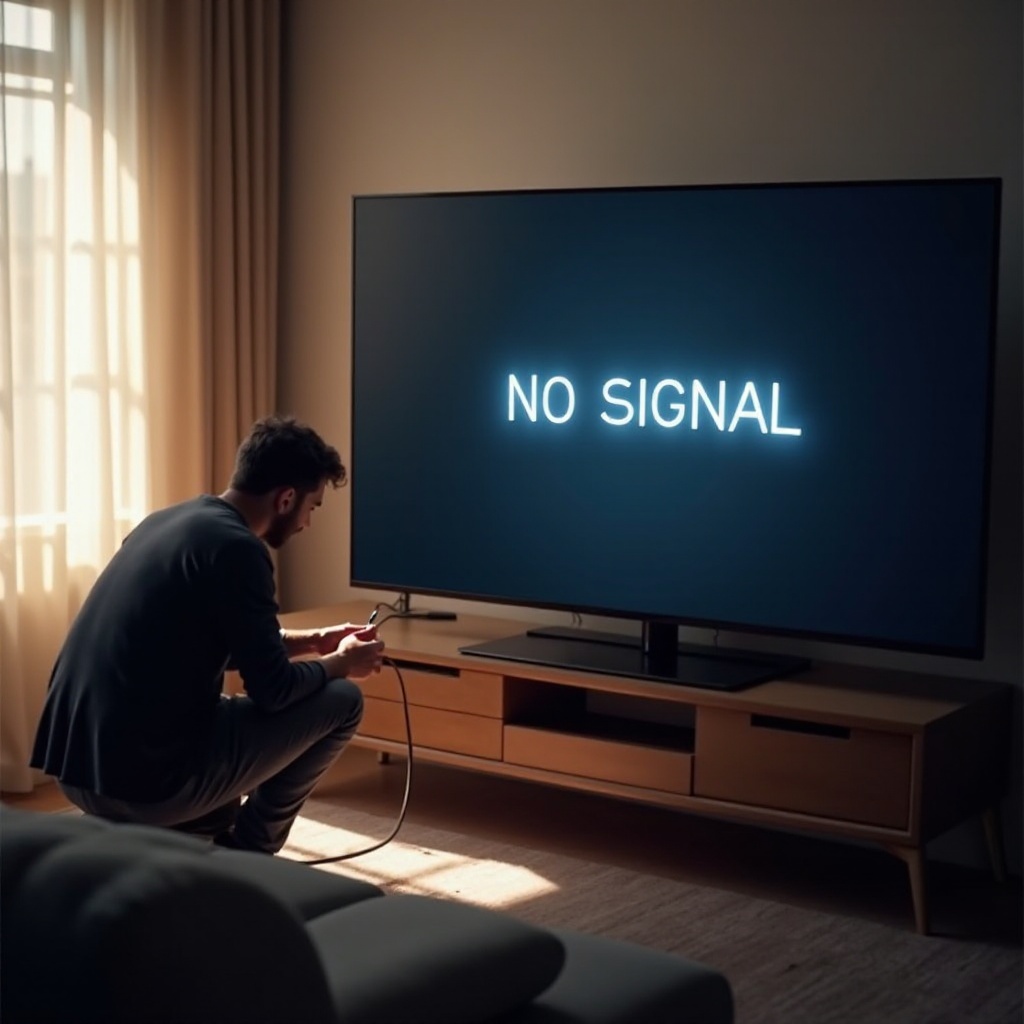
For stubborn issues that persist after initial steps, a deeper dive into troubleshooting may be needed.
Testing with Different Cables and Ports
- Replace your current HDMI cable with one that is either new or known to work.
- Try switching to a different HDMI port on the TV.
- Successful connection might indicate a specific cable or port issue.
Inspecting Hardware and Port Condition
- Check HDMI ports on both the TV and the device for physical damage or obstructions.
- Use compressed air or a soft brush to gently clean these ports.
- Test the external device on another TV or display to ensure the issue isn’t with the device itself.
Updating Firmware and Drivers
- Navigate the TV’s menu to find and install any firmware updates.
- Update device drivers through its menu or the manufacturer’s website.
- Software updates often enhance HDMI connectivity and overall device operation.
Implementing these advanced fixes can address persistent connectivity issues, restoring full functionality to your entertainment system.
Preventing Future HDMI Issues
After resolving current HDMI problems, consider steps to prevent them from recurring.
Using High-Quality Cables
- Invest in high-performance, well-shielded HDMI cables for ongoing reliability.
- Handle cables gently to prevent wear and degradation over time.
Keeping Firmware Updated
- Regularly update firmware on all connected devices to enjoy their latest enhancements.
- This proactive approach can help avert potential connectivity problems.
Regular Maintenance of Ports
- Routinely inspect and clean HDMI ports on your TV and connected devices.
- Handle these areas with care to avoid damage or debris buildup.
These steps will help maintain an uninterrupted HDMI connection, ensuring a seamless viewing experience on your TV.
Conclusion
Many HDMI ‘No Signal’ issues can be tackled with straightforward fixes. By diligently checking cables, verifying inputs, and maintaining your equipment, you can keep these problems at bay. If more intense troubleshooting becomes necessary, understanding the underlying causes helps streamline the process. Additionally, investing in preventative measures ensures your home entertainment setup operates smoothly into the future.
Frequently Asked Questions
Why does my TV say no signal when HDMI is plugged in?
This happens due to poor cable connections, incorrect input selection, faulty cables, or outdated firmware.
How can I test if my HDMI cable is faulty?
Use the cable with another device and TV. If the ‘No Signal’ issue persists, the cable or ports might be damaged.
What should I do if none of the troubleshooting steps work?
If problems persist, consult a professional technician or contact the device manufacturer for further assistance.