Introduction
The Nest Thermostat is a powerful tool for managing your home’s temperature, combining comfort and energy efficiency. Understanding how to set your Nest Thermostat to hold a desired temperature ensures a comfortable environment, no matter how the weather changes outside. This function is especially valuable when your schedule deviates from the thermostat’s learning pattern, or if you’re hosting guests and want consistent comfort. By mastering the hold feature, you can make the most of your Nest Thermostat while potentially lowering your energy bills.

Understanding the Nest Thermostat Interface
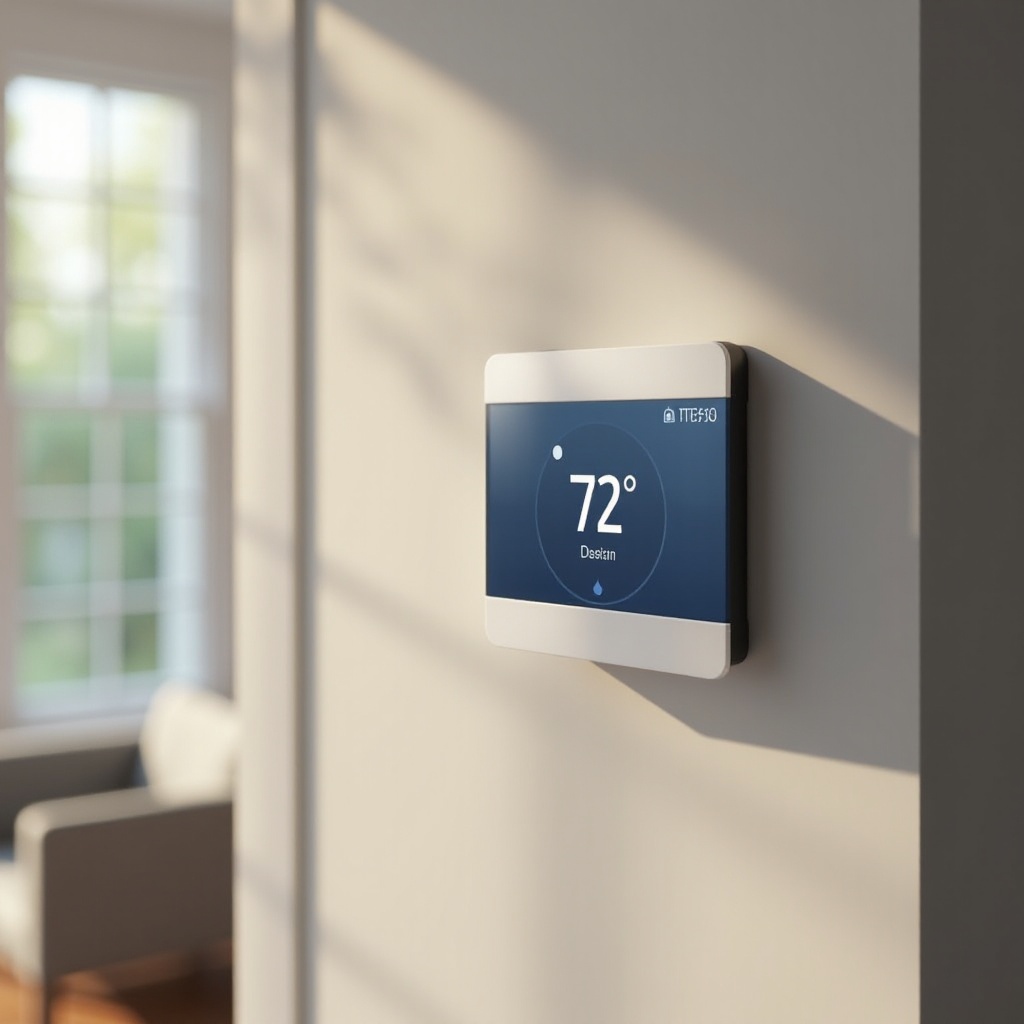
The innovative design of the Nest Thermostat makes it accessible for everyone, even those who aren’t particularly tech-savvy. Key components include the physical ring for temperature adjustment, a digital display with real-time information, and a selection button. Knowing these basics helps you interact confidently with your thermostat. The display not only shows temperature but also alerts you to updates and alerts. Understanding your thermostat’s interface is fundamental as you set up and personalize your temperature settings.
Accessing Temperature Control Settings
Before you can set your Nest Thermostat to hold a specific temperature, you must access the appropriate settings. Start by waking the thermostat: tap the device or turn the ring. On the main screen, you’ll notice various options such as Home, Away, and Temperature. Navigate to Temperature and select it to explore the available settings, which include Schedule, Eco, and Hold Temperature. Connecting your system to the Nest app allows you to change these settings from your smartphone or tablet, ensuring flexibility in managing your home’s climate.
Step-by-Step Guide to Setting the Hold Temperature on Your Nest Thermostat
-
Wake the Thermostat: Press the center of your Nest Thermostat or turn the ring to wake up the display.
-
Access the Menu: Rotate the outer ring to reach the ‘Thermostat’ menu and select it.
-
Select ‘Temperature’: In the menu, find and select the ‘Temperature’ option.
-
Choose ‘Hold Temperature’: Scroll to the ‘Hold Temperature’ choice and select it.
-
Set Desired Temperature: Adjust the temperature using the outer ring to your preferred setting.
-
Confirm Your Selection: Once satisfied, press the thermostat to confirm the hold temperature.
-
Duration of Hold: Decide if you want the temperature held for hours or days, depending on your preferences.
Follow these steps to ensure your thermostat maintains your ideal temperature until you decide to change settings or revert to regular scheduling.
Benefits of Using the Hold Temperature Feature
The hold temperature feature offers numerous advantages that enhance both comfort and cost-saving efforts. This function allows you to maintain a consistent indoor climate amidst unforeseen changes in your schedule, creating a comfortable space effortlessly. Whether during a gathering, vacation, or unexpected schedule shift, holding a steady temperature is crucial. The feature also minimizes the need for constant adjustments or intricate programming, simplifying climate management. Moreover, stabilizing temperatures can lead to less energy consumption, ultimately reducing your energy bills.

Common Issues and Troubleshooting Tips
Although the Nest Thermostat is built with cutting-edge technology, users might face issues when setting the hold temperature. Sometimes the thermostat might not maintain the set temperature due to incorrect configurations, software glitches, or connectivity problems.
Ensure your device’s software is updated to the latest version, check that Wi-Fi is functioning as many features require internet, and double-check the setup instructions to ensure correct temperature configuration. If issues persist, a factory reset can resolve ongoing problems, even though this will revert all settings to their defaults. Testing these solutions can help identify and fix any disruptions, ensuring seamless thermostat operation.
Optimizing Energy Efficiency with the Hold Function
Beyond comfort, the hold function aids in energy efficiency. By keeping a consistent temperature, the heating and cooling systems cycle less frequently, which decreases energy usage. This consistency is key to managing utility expenses while fostering an eco-conscious home. Complementing the hold function with energy-friendly routines, like utilizing natural light or insulating your home, increases savings. By merging comfort with efficiency, the hold feature supports a welcoming ambiance and lessens energy costs.
Conclusion
Setting the Nest Thermostat to hold temperature offers a dual advantage of comfort and efficiency, regardless of outside conditions. By mastering this setting, you can simplify heating and cooling management and enjoy potential savings on energy bills. With this guide, troubleshooting issues becomes straightforward, allowing you to optimize your home climate and convenience effectively.
Frequently Asked Questions
How does the hold temperature feature affect energy bills?
The hold temperature feature stabilizes energy consumption by reducing the frequency of heating and cooling cycles, potentially lowering your energy costs.
Can I set the hold function remotely using the Nest app?
Yes, you can set the hold function remotely with the Nest app, provided your thermostat is connected to Wi-Fi.
What should I do if my Nest Thermostat is not holding the temperature?
Check system settings, ensure software is up to date, verify Wi-Fi connectivity, and consider a factory reset if issues persist.